

A video call freezes just as you are presenting. A large file takes an hour to upload. Your kids start streaming in the next room, and suddenly every work app slows down. This remote work internet setup example shows how a typical home can avoid those daily frustrations with the right speed, equipment placement, and Wi-Fi plan.
For remote workers across Southwestern Ontario, the goal is not simply buying the biggest advertised speed. It is building a home connection that stays dependable when work, school, streaming, gaming, and smart devices all happen at once. A practical setup starts with the service entering your home and ends at the device you use to earn a living.
A Remote Work Internet Setup Example That Works
Picture a household with two adults working from home, one student attending online classes, and several connected TVs, phones, and smart home devices. One adult spends much of the day in video meetings and uploads documents. The other uses cloud-based software, email, and occasional video calls. In the evening, the family streams shows and plays online games.
For this home, a 100 Mbps plan may cover basic needs if only one person works remotely and the home has light streaming activity. But a 300 Mbps to 500 Mbps unlimited plan is usually the more comfortable choice for a busy household. It leaves room for multiple video calls, 4K streaming, software updates, and large uploads without requiring everyone to take turns using the connection.
A gig-speed plan can be a strong fit for larger households, serious gamers, home-based businesses, and people regularly moving large media files. The trade-off is simple: faster plans provide more breathing room, but the best plan is still one that matches the number of users, devices, and work tasks in your home.
The sample layout
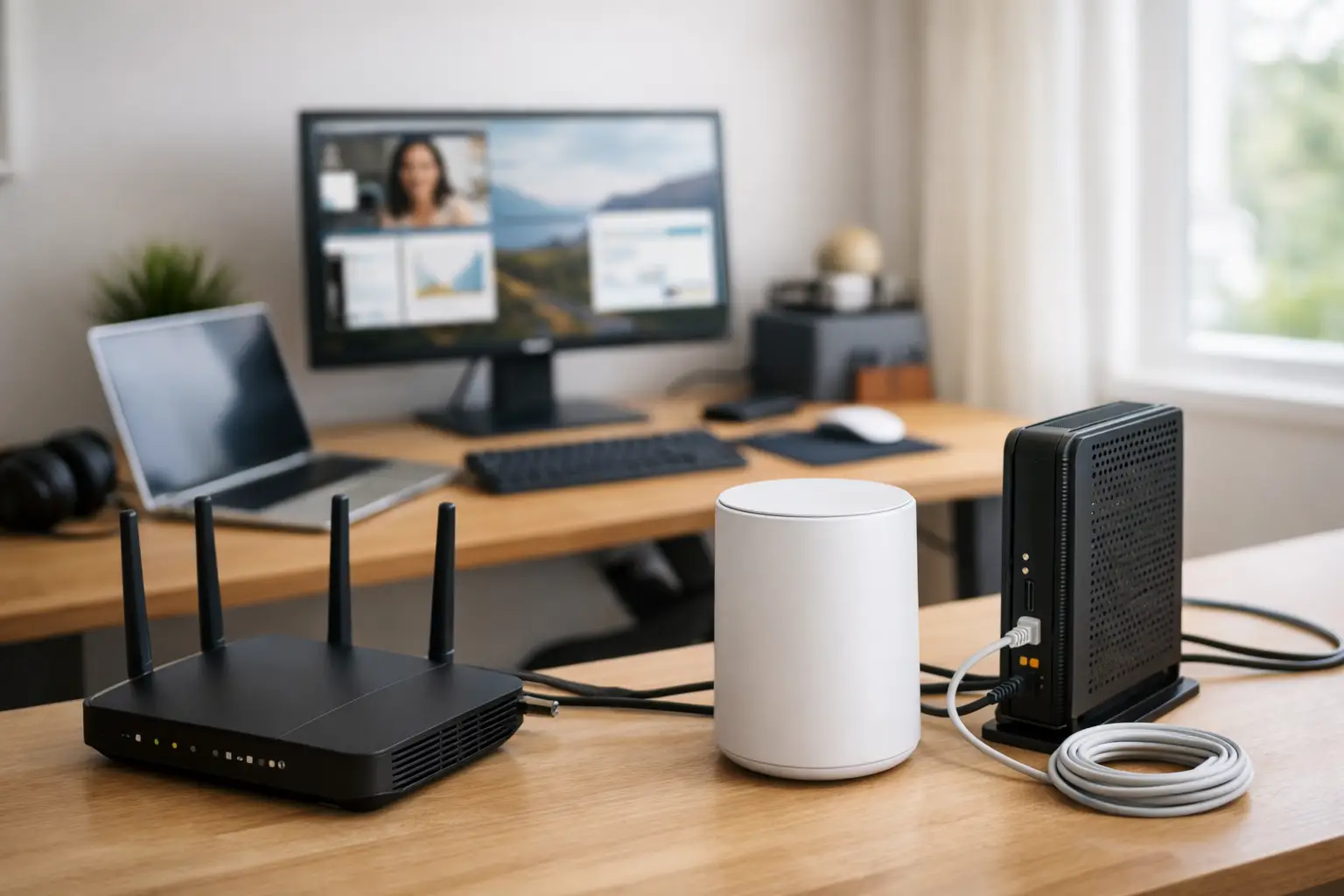
In this example, the internet modem is installed near the center of the main floor, rather than hidden in a basement utility room or inside a cabinet. A quality Wi-Fi router sits in an open area on a shelf, away from large metal objects, televisions, and microwaves. The primary home office is one room away, where the work computer connects directly to the router with an Ethernet cable.
That wired connection is a smart choice for the person who leads video meetings, handles customer calls, or needs consistent access to cloud systems. Wi-Fi is convenient, but Ethernet removes many of the issues caused by distance, walls, and wireless interference.
The second worker uses Wi-Fi from an upstairs office. If the signal is strong and stable, there may be no need for extra equipment. If meetings drop or speeds vary by room, a mesh Wi-Fi system or properly placed Wi-Fi extender can improve coverage. In a long bungalow, a multi-story home, or a rural property with thick walls, one router may not be enough to deliver reliable service everywhere.
Choose Speed Based on Work, Not Just Browsing
Internet plans are often compared by download speed, which affects how quickly you stream, browse, download files, and update devices. Remote work also depends on upload speed. Upload matters when you send large files, back up photos, share presentations, use security cameras, or appear on video calls.
A worker who checks email and uses web-based documents has different needs from a designer uploading project files or a small business owner hosting frequent online meetings. Before choosing a package, consider the busiest hour in your home. Count the people using the connection and what they do at the same time, not just what you do alone at your desk.
A household that only needs email and occasional meetings may be perfectly happy with 100 Mbps. A family with simultaneous video calls, online learning, streaming, and gaming should look higher. Unlimited data is especially valuable because remote work does not stop after a single call. Video meetings, cloud backups, system updates, and entertainment can add up quickly over a month.
Put Your Router Where It Can Do Its Job
A fast internet plan cannot overcome poor router placement. Wi-Fi signals weaken through walls, floors, brick, concrete, and dense furniture. Putting your router in the far corner of a basement may protect it from view, but it can leave the rooms where you work with weaker coverage.
Place the router in a central, elevated, open location whenever possible. Keep it away from enclosed cabinets and large appliances. If the router has external antennas, position them according to the manufacturer’s directions, often with one vertical and another angled differently to serve devices across floors.
If your office is at the edge of the home, test the connection from the exact desk where you work. Do not rely only on a speed test performed beside the router. Run a test during the workday and again in the evening when more household devices are active. A connection can look excellent in one room and struggle in another.
When mesh Wi-Fi makes sense
Mesh Wi-Fi is useful when you have persistent dead zones, a large floor plan, multiple levels, or a detached workspace. Instead of relying on one router to push a signal across the entire property, mesh units work together to extend coverage more evenly.
Placement matters here too. Put the second mesh unit where it still receives a good signal from the first unit, not in the farthest dead zone. If possible, connect mesh units with Ethernet for the strongest result. An extender can help in a smaller problem area, but mesh is often the better long-term option for whole-home coverage.
Give Your Main Work Device a Better Connection
For a home office, use Ethernet when it is practical. A wired desktop, laptop docking station, or VoIP phone has a direct path to the router. This can improve consistency during calls and reduce delay for real-time work.
If running a cable is not realistic, use the newer Wi-Fi band supported by your router and computer. Many modern routers offer both 2.4 GHz and 5 GHz connections. The 2.4 GHz band can travel farther and pass through obstacles more easily, while 5 GHz often offers faster performance at shorter distances. Some newer equipment also supports 6 GHz, which can be helpful in homes with many nearby Wi-Fi networks.
Your work computer should also be kept current. Update its operating system and Wi-Fi drivers, and restart the router occasionally if performance becomes inconsistent. These small maintenance steps solve more issues than many people expect.
Protect Meeting Time From Household Traffic
A home internet connection is shared. If a game console starts downloading a major update while someone is on a client call, the experience can suffer, particularly on plans with lower upload capacity. This does not mean everyone has to stop using the internet during work hours. It means the household needs a simple plan.
Schedule large downloads, cloud backups, and device updates outside important meeting windows when possible. If your router includes quality of service settings, prioritize a work computer or video conferencing traffic. This can be useful in busy homes, although the settings are not a substitute for choosing enough speed in the first place.
For workers who cannot miss a call, keep a backup option ready. A mobile hotspot can provide temporary access during a local outage or while troubleshooting a home network issue. It is not meant to replace a primary unlimited home connection, but it can save an important meeting.
Check the Full Setup Before Your First Big Meeting
Test video calls from your actual workspace. Join a meeting, turn on your camera, share a screen, and ask another participant whether your voice and image are clear. Upload a normal work file and notice the timing. Walk through the house with a phone to identify rooms where Wi-Fi becomes weak.
If results are inconsistent, start with the simplest fixes: move the router, restart equipment, reduce distance from the access point, or connect the most important device by Ethernet. Then consider a mesh system or a faster plan if your household’s needs have outgrown the connection.
Local installation support and straightforward answers can make this process much easier, especially where rural coverage and home layouts vary. S-Connect helps households find service options that fit how they actually live and work, rather than pushing a one-size-fits-all setup.
Your home office does not need a complicated network closet to perform well. Start with enough unlimited speed, place your equipment where the signal can reach you, and give your most important work device the strongest connection available. That gives you more time to focus on the work in front of you, not the loading symbol on your screen.