

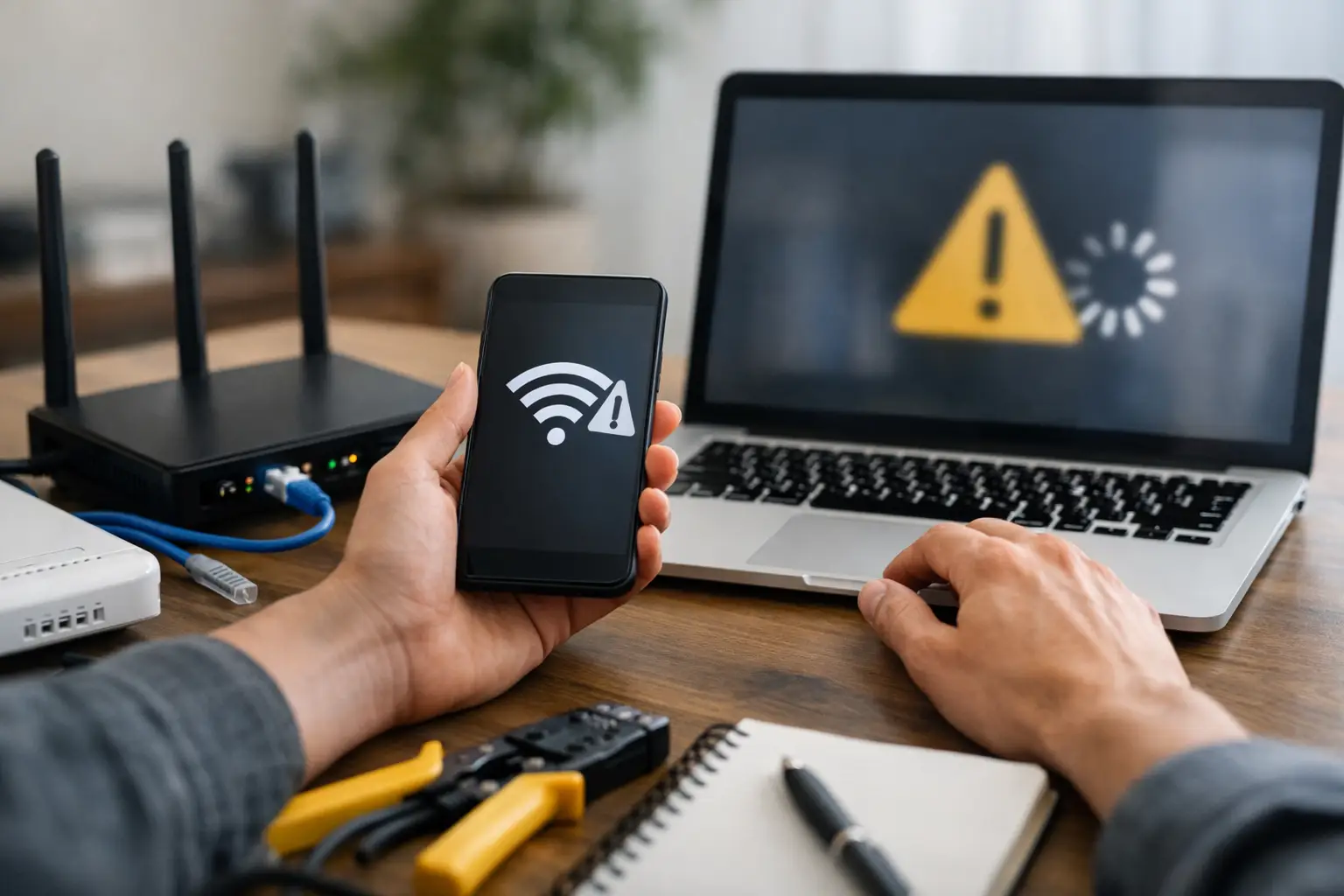
When your video call freezes, the TV starts buffering, and every device in the house suddenly shows no connection, you do not need a lecture – you need internet outage troubleshooting steps that work fast. Whether you are working from home in London, helping kids with school in Stratford, or trying to keep a small business online in a rural area, the goal is simple: figure out whether the problem is inside your home, with your equipment, or with the service itself.
The good news is that most connection issues leave clues. A full outage feels different from slow speeds. A Wi-Fi problem looks different from a modem issue. If you check the right things in the right order, you can save time, avoid unnecessary resets, and know exactly when it is time to contact support.
Start with the simplest internet outage troubleshooting steps
The first question is not whether the internet is down everywhere. It is whether the problem is affecting one device, one room, or your whole property. If your phone will not connect but your smart TV is still streaming, you are not dealing with a full outage. If every device is offline, the issue is more likely tied to your modem, router, line, or local service interruption.
Try one wired and one wireless device if you can. A laptop connected by Ethernet helps separate Wi-Fi issues from broader service issues. If the wired device works but Wi-Fi does not, your internet service may be fine and the router is the real problem. If neither works, keep moving down the chain.
Look at your modem and router before touching anything. The status lights matter. A blinking online light, a red warning light, or a completely dark modem usually points to power, signal, or network registration trouble. On the other hand, normal lights with no internet on your devices can mean the hardware needs a refresh.
Check power, cables, and recent changes
This sounds basic because it is basic – and it solves more problems than most people expect. Make sure the modem and router are plugged in securely and that the outlet is working. Power bars get switched off by accident. Loose coaxial or Ethernet cables can interrupt service even if the modem appears to be on.
If you recently moved furniture, cleaned around the setup, installed a new TV box, or added another device, inspect the connections carefully. A cable that is slightly pulled out can create a complete outage or an unstable signal. For rural households especially, equipment is sometimes placed in utility rooms, basements, or less-used spaces where problems go unnoticed.
Also think about anything that changed just before the outage started. Did the power flicker? Was there a storm? Did someone replace the router? Did a child unplug something to charge a tablet? Context helps. It is much easier to troubleshoot when you connect the outage to an event.
Restart equipment the right way
There is a reason support teams ask you to reboot your equipment. It works. But the order matters.
Unplug the modem and router. Wait at least 30 seconds. If they are separate devices, plug the modem back in first and let it fully reconnect. That can take a few minutes. Once the modem lights stabilize, plug the router back in and give it another minute or two to broadcast Wi-Fi properly.
This step clears temporary software hiccups, dropped registrations, and routing conflicts. It will not fix a neighborhood outage or damaged line, but it often restores service after power interruptions or brief network instability.
Try not to mash the reset button unless you mean to factory reset the device. That is a different step and usually a last resort. A full factory reset can wipe custom Wi-Fi names, passwords, and settings, which creates more work than necessary.
Rule out a Wi-Fi-only problem
A lot of people say the internet is down when the real issue is weak or overloaded Wi-Fi. That distinction matters because the fix is different.
If your modem shows normal online status but devices still struggle to connect, move closer to the router and test again. Thick walls, long distances, older devices, and crowded wireless channels can all cause what feels like an outage. In larger homes, especially older houses common across Southwestern Ontario communities, signal drop-off between floors is common.
Try disconnecting and reconnecting to the Wi-Fi network on the affected device. If that fails, restart just the device itself. Phones, tablets, smart TVs, and laptops sometimes hold onto old network information or fail to renew their connection properly.
If some rooms consistently lose service while others work fine, you may not have an outage at all. You may need better router placement, updated equipment, or a broader home coverage solution. That is not as dramatic as a full service interruption, but it matters just as much if your office, gaming setup, or family room sits in a dead zone.
Check whether it is a local outage or line issue
If every device is offline after a proper reboot, it is time to consider whether the issue is outside your home. Area outages can happen because of maintenance, infrastructure faults, severe weather, roadside work, or utility disruptions.
This is where patterns help. If neighbors are also offline, it is likely not your modem. If your power was restored after an outage but your internet did not come back, the network in your area may still be recovering. For customers in rural or edge-of-town areas, line conditions can also be more sensitive to weather and service path issues than in dense urban blocks.
Check for service notifications from your provider if available through text, email, or app updates. If no alerts are visible, support can often confirm whether there is a known issue affecting your area. A local provider with direct customer assistance can usually tell you faster whether this is a home setup problem or a broader network event.
Know when the problem is your equipment
Sometimes the internet service is available, but your modem or router is the weak link. Older equipment can become less stable over time, especially in homes with many connected devices. Streaming, gaming, remote work, smart home cameras, and video calls all compete for bandwidth and router resources.
Warning signs include frequent drops that return after rebooting, inconsistent Wi-Fi despite good placement, or equipment that runs hot and needs repeated restarts. A modem that never fully regains its online light after outages may also be failing or struggling with signal quality.
There is a trade-off here. Replacing equipment too early costs money. Waiting too long can mean daily frustration, lost work time, and endless buffering. If outages are frequent but area service is stable, it is worth asking whether your current hardware still fits your household’s needs.
When to contact support
After you have checked connections, rebooted properly, tested multiple devices, and ruled out a simple Wi-Fi issue, contacting support is the next smart move. At that point, you are no longer guessing. You can explain what lights you see, whether wired devices work, what changed before the outage, and whether neighbors are affected.
That makes troubleshooting faster and more accurate. It also helps support determine whether the issue needs remote reprovisioning, a signal check, or a technician visit. If you live in a town or rural service area where dependable internet is essential for work, school, streaming, or business operations, fast local support is not just convenient – it is part of the service value.
For households and businesses that want fewer interruptions overall, provider choice matters too. A company like S-Connect focuses on reliable local connectivity, practical support, and service options that fit both in-town and rural communities, which can make a real difference when uptime matters.
Internet outage troubleshooting steps that save time next time
If outages happen more than once in a while, prepare before the next one. Keep your Wi-Fi name and password written somewhere secure. Know where your modem and router are located. Label your cables if you have multiple devices connected. If you work from home or run a business, consider a backup connection option for urgent tasks.
It also helps to pay attention to patterns. If service drops only during storms, signal conditions may need inspection. If Wi-Fi fails only at night when everyone is streaming, the issue may be network congestion inside the home rather than a full outage. If one device keeps disconnecting while others stay online, focus on that device first.
The fastest fixes usually come from calm troubleshooting, not random button pushing. Start with what is affected, check the hardware, restart in the right order, and separate Wi-Fi trouble from a service outage. A little structure goes a long way when the house suddenly goes offline, and the right steps can get you back up and running without wasting half the day.