

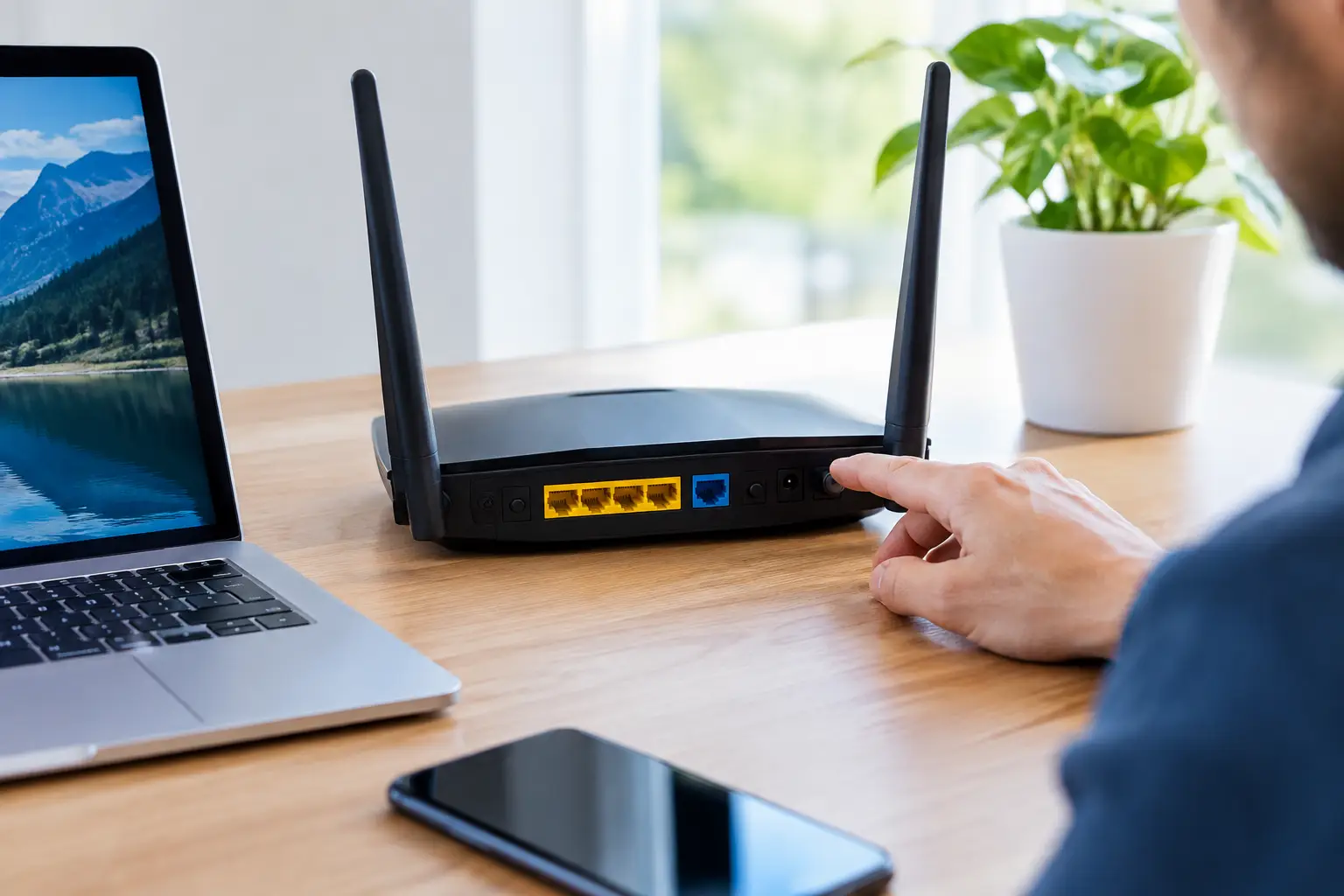
A fast internet plan can still feel slow when the router is in the wrong spot, using an overcrowded channel, or trying to serve too many devices with default settings. Learning how to optimize router settings helps your household get more from the speed you already pay for – whether you are working from home, streaming in 4K, gaming online, or helping kids stay connected for school.
The goal is not to change every setting in the router menu. A few practical adjustments can make a noticeable difference in real homes, especially where walls, distance, and connected devices affect Wi-Fi performance.
Start With Router Placement, Not the Settings Menu
Before changing anything online, look at where your router sits. Wi-Fi signals spread outward from the router, and thick walls, metal surfaces, appliances, and large furniture can weaken that signal. A router tucked into a basement corner or hidden behind a TV may have a hard time reaching bedrooms, home offices, and the far end of the house.
Place it as centrally as possible, ideally on a shelf or table rather than on the floor. Keep it out in the open, away from enclosed cabinets and other electronics. If your router has adjustable antennas, position one vertically and one horizontally to help devices at different heights connect more effectively.
For larger homes, older homes with dense walls, or rural properties with long layouts, placement alone may not cover every room. In those cases, a mesh Wi-Fi system or wired access point can be a better answer than repeatedly adjusting one router.
Use the Right Wi-Fi Band for Each Device
Most modern routers offer two main Wi-Fi bands: 2.4 GHz and 5 GHz. Some newer equipment also includes 6 GHz. Each has a different job.
The 2.4 GHz band reaches farther and passes through walls more easily, but it is usually slower and more crowded. It is a good fit for smart plugs, thermostats, security cameras, and devices located farther from the router. The 5 GHz band delivers faster speeds over shorter distances, making it a strong choice for streaming devices, laptops, phones, and game consoles near the router.
If your router shows separate network names, such as HomeWiFi and HomeWiFi-5G, connect high-demand devices to the 5 GHz network when signal strength is good. If the router uses one network name for both bands, it may choose automatically. That is convenient, but manually separating the bands can give you more control if a device keeps connecting to the slower option.
The 6 GHz band can offer even cleaner, faster connections for compatible newer devices. Its range is shorter, so it works best in the same room or nearby rooms.
How to Optimize Router Settings for Better Performance
Open your router’s app or browser-based control panel using the instructions provided by the manufacturer or your internet provider. The wording differs by model, but several settings are worth checking.
Change the Wi-Fi channel when nearby networks are crowded
In busy neighborhoods, apartments, or closely spaced homes, multiple Wi-Fi networks may compete on the same channel. That can lead to buffering, lag, and inconsistent speeds even when your internet connection is working properly.
Look for a setting called Wi-Fi Channel or Channel Selection. Many routers handle this automatically, and automatic selection is often enough. If performance is poor at certain times of day, try selecting a less crowded channel manually. On 2.4 GHz, channels 1, 6, and 11 are usually the best choices because they do not overlap. On 5 GHz, there are more channel options, so choosing a clear one is often easier.
Make one change at a time, then test your connection in the rooms where you use it most. The best channel depends on what is happening around your home, so there is no single setting that wins everywhere.
Keep security current and your network private
Set your router security to WPA3 if your devices support it. WPA2 is still common and generally acceptable when WPA3 is not available. Avoid older options such as WEP or WPA, which are outdated and less secure.
Use a unique Wi-Fi password that is difficult to guess. A guest network is useful when visitors need access, since it keeps their devices separate from your main network and connected home equipment. This is particularly helpful if you use smart locks, cameras, or a home security system.
You should also change the router administrator password if it is still set to the factory default. That password controls the router itself, not just the Wi-Fi connection.
Update router firmware
Router firmware is the software that runs the device. Updates can fix bugs, improve security, and sometimes improve compatibility with newer phones, laptops, and smart home devices.
Check the router app or administration page for firmware updates every few months. Some routers can install updates automatically, which is a convenient option for most households. Schedule automatic updates overnight if the router gives you that choice, since the connection may briefly restart during installation.
Turn on quality of service when your home needs it
Quality of Service, often called QoS, lets you prioritize certain types of traffic or specific devices. This can help when multiple people are online at once and one activity needs a steadier connection than the others.
For example, you might prioritize a work laptop during video meetings, a game console during online play, or a streaming device in the evening. QoS is most useful when your connection is being heavily used. If your household has plenty of available bandwidth and no noticeable slowdowns, you may not need to adjust it.
Be careful not to over-prioritize too many devices. If everything is marked as high priority, the setting cannot make meaningful decisions.
Reduce the Devices Competing for Bandwidth
Many home Wi-Fi problems are not caused by the router itself. Background cloud backups, software updates, security cameras, smart TVs, and idle devices can all use bandwidth without anyone noticing.
Start by reviewing the list of connected devices in your router app. Remove anything you do not recognize, then reconnect devices using the new Wi-Fi password if necessary. For devices you rarely use, such as an old tablet or spare streaming stick, consider disconnecting them entirely.
When possible, connect stationary high-use devices with Ethernet cables. A wired connection is ideal for desktop computers, gaming consoles, smart TVs, and workstations near the router. It reduces Wi-Fi congestion and delivers a more consistent connection for activities that are sensitive to delay.
Match Your Router to Your Internet Plan and Home
A router that is several years old may not be able to make full use of a faster internet plan, particularly when many devices are connected. If you have upgraded to speeds of 500 Mbps or 1 Gbps but still use an older entry-level router, the router may become the bottleneck.
Look for Wi-Fi 6 or newer when replacing equipment, especially for busy homes with many phones, tablets, streaming devices, and smart home products. Wi-Fi 6 does not automatically increase the speed arriving at your house, but it handles multiple connected devices more efficiently.
Router choice also depends on your layout. A compact apartment may need only one good router. A multi-story home, large bungalow, or detached workspace may benefit from mesh Wi-Fi. For a home office, wired Ethernet may be the most dependable option of all.
Test Before You Make Bigger Changes
After adjusting placement or settings, test Wi-Fi in the rooms where performance matters most. Run tests at different times of day and compare results close to the router with results in a bedroom, office, or basement. Also check whether the problem affects every device or only one.
If speeds are strong beside the router but weak across the home, the issue is likely coverage. If every device is slow, restart the router and modem, confirm no major downloads are running, and check whether your plan meets your household’s needs. A home with remote workers, gamers, and several 4K streams may need more speed than a household that primarily browses and checks email.
For Southwestern Ontario households that want dependable speeds, unlimited data, and help choosing the right setup, S-Connect can help match internet service to the way your home actually connects. A few smart router adjustments are a great start, but the best Wi-Fi experience begins with reliable internet service and equipment that fits your space.