

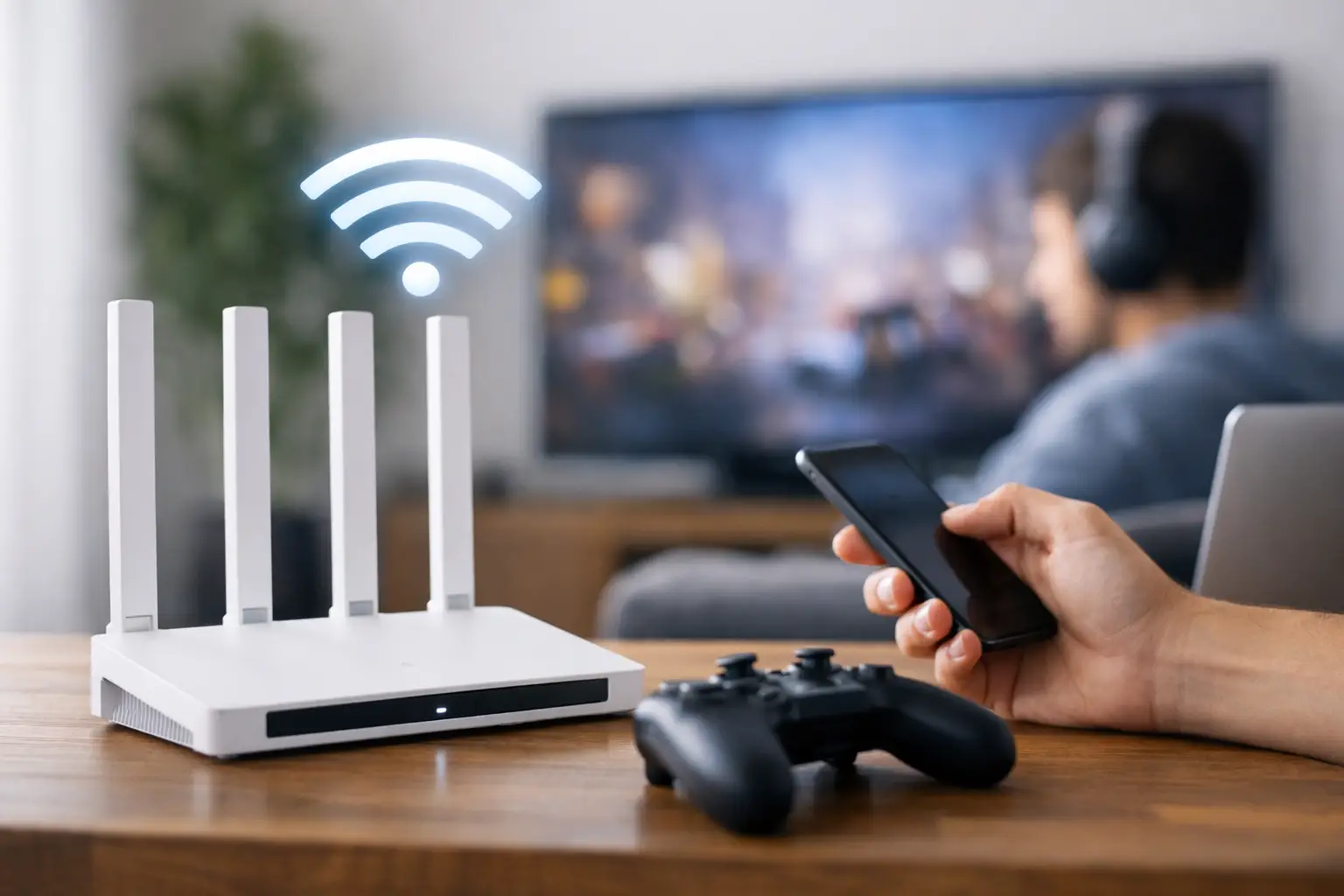
A video call freezes just as you need to answer. Your game responds a second late. A movie keeps dropping to a blurry picture while everyone else in the house is online. If you are wondering how to reduce internet lag, the answer is usually not one expensive gadget. It starts with identifying whether the problem is your Wi-Fi, your devices, your home network activity, or the internet connection coming into your home.
For households across Southwestern Ontario, lag can feel especially frustrating because internet is doing more than ever. It supports remote work, online classes, smart TVs, security cameras, gaming consoles, and the everyday scrolling that happens on dozens of devices. Here is how to find the source and make a noticeable difference.
What Internet Lag Actually Means
Lag is the delay between an action and the result you see online. In gaming, it can mean your character moves after you press the button. On a video call, it can create awkward pauses, frozen screens, or choppy audio. During streaming, it often shows up as buffering.
People often blame “slow internet,” but download speed is only part of the story. Lag is more closely tied to latency, which is the time it takes for data to travel between your device and a server. A plan with plenty of download speed can still feel laggy when Wi-Fi is weak, the network is crowded, or a device is using the connection heavily in the background.
A quick speed test can be useful, but run it in the same location and on the same device where you notice the problem. Test once near the router and once in the room where lag happens. If results are much worse farther away, your Wi-Fi coverage is likely the issue. If they are poor everywhere, it may be time to look at your plan, equipment, or service connection.
How to Reduce Internet Lag on Your Home Network
Start with the router location
Your router needs open space to send a strong signal around the home. Placing it in a basement corner, inside a cabinet, behind a TV, or near large metal objects can limit coverage. Put it as close to the center of your home as practical, elevated on a shelf or table, and out in the open.
Walls, floors, brick, concrete, and older plaster can all weaken Wi-Fi. Rural homes and larger properties may have layouts that make one router struggle to reach every room. If the signal drops in a home office, upstairs bedroom, detached workspace, or back patio, moving the router may help. When it does not, a mesh Wi-Fi system or properly placed access point is often a better answer than simply buying a stronger-looking router.
Use a wired connection where lag matters most
Wi-Fi is convenient, but Ethernet is more consistent. A wired connection avoids much of the interference and signal loss that can affect wireless devices. For a gaming PC or console, a work computer used for video meetings, or a smart TV that regularly buffers, connecting directly to the router can reduce lag right away.
Not every room has Ethernet wiring, and running a cable may not suit every household. In that case, prioritize wired connections for the devices that need low latency most. A few feet of cable for a desk setup can make a bigger difference than upgrading several wireless devices.
Choose the right Wi-Fi band
Most modern routers offer two main Wi-Fi bands: 2.4 GHz and 5 GHz. The 2.4 GHz band reaches farther and handles obstacles better, but it is usually slower and more crowded. The 5 GHz band is generally faster with lower interference, though it does not travel as far through walls.
Use 5 GHz for gaming, streaming, video calls, and newer devices that are close enough to the router. Use 2.4 GHz for smart home devices, printers, or devices located farther away. If your router supports Wi-Fi 6 or a newer standard, compatible devices may also manage busy home networks more effectively.
Reduce background traffic during busy moments
One connection can be shared by many people, but not every online activity has the same impact. Large game downloads, cloud backups, system updates, and high-resolution streaming can all compete with video calls or online games.
Before an important meeting or tournament, pause unnecessary downloads and check whether another device is uploading large files. Upload activity matters because it can create lag even when your download speed looks fine. Automatic backups from phones, cameras, and computers are common culprits.
If your router has Quality of Service settings, sometimes called QoS or device prioritization, use them to give priority to a work laptop, console, or video conferencing device. The setting will not create more bandwidth, but it can help the most important traffic get through first when the network is busy.
Check the Devices That May Be Causing the Problem
A slow or overloaded device can look like an internet problem. Restart the device before changing everything else. Then close unused browser tabs, background programs, and apps that sync files or use video.
Update your operating system, browser, game client, and network drivers. Older software can cause connection issues, especially after a router or service upgrade. On phones and tablets, forget and reconnect to the Wi-Fi network if the connection seems unstable.
Also consider the age of your hardware. An older laptop with an outdated Wi-Fi adapter may not be able to take full advantage of a newer high-speed plan. The same applies to older routers. A router that was fine when a household had three devices may struggle now that it is managing streaming, work, school, cameras, phones, and smart speakers all at once.
Look for Interference and Coverage Gaps
Wi-Fi shares airspace with other household technology. Microwaves, baby monitors, Bluetooth devices, cordless phones, neighboring networks, and even some security equipment can add interference. This is more common in apartments, townhomes, and closely spaced neighborhoods, where many routers compete for the same channels.
Restarting a router can prompt it to select a cleaner channel, but that is not always a long-term fix. Router settings may let you choose channels manually or enable automatic channel selection. If you are not comfortable changing those settings, local support can help you avoid turning a small issue into a larger one.
Coverage gaps are different from interference. If Wi-Fi works well near the router but consistently fails in one part of the house, a mesh system is often the practical fix. Mesh units use multiple points to extend coverage across larger homes. Placement matters: each unit needs a good connection to the previous one, so placing one in a complete dead zone will not solve the problem.
Make Sure Your Internet Plan Fits Your Household
Internet speed needs depend on how many people and devices are online at once. A household that checks email and streams one show has different needs than a family with remote workers, students on video calls, 4K streaming, online gaming, and connected security devices.
More speed can help with congestion, especially when several people are downloading, streaming, or uploading at the same time. But a faster plan will not fix a weak Wi-Fi signal in the far bedroom or a lagging game server across the country. Think of your connection as the road into your home and Wi-Fi as the roads inside it. Both need to support the traffic.
Unlimited data is also valuable for active households because it removes the pressure of monitoring usage during heavy streaming, work, or gaming months. When comparing options, look beyond the headline speed. Ask about equipment, Wi-Fi coverage, upload needs, installation, and the support available if your connection needs attention.
When to Contact Your Internet Provider
If lag continues after restarting equipment, testing a wired device, and checking for heavy background use, contact your provider. Share specific details: when the issue occurs, which devices are affected, whether it happens on Wi-Fi and Ethernet, and what your speed test results show at different times of day.
This information helps support teams determine whether the problem is inside the home, related to equipment, or tied to the service line. For homes in smaller towns or rural areas, installation location and local coverage conditions can also matter. A provider with local service knowledge, such as S-Connect, can help match the connection and setup to the way your household actually uses the internet.
Do not settle for lag as a normal part of being online. Start with the simple fixes, test one change at a time, and focus on the places where your connection matters most. A better router location, a wired cable to the right device, or the right plan for your home can turn frustrating delays into an internet connection you can rely on.