

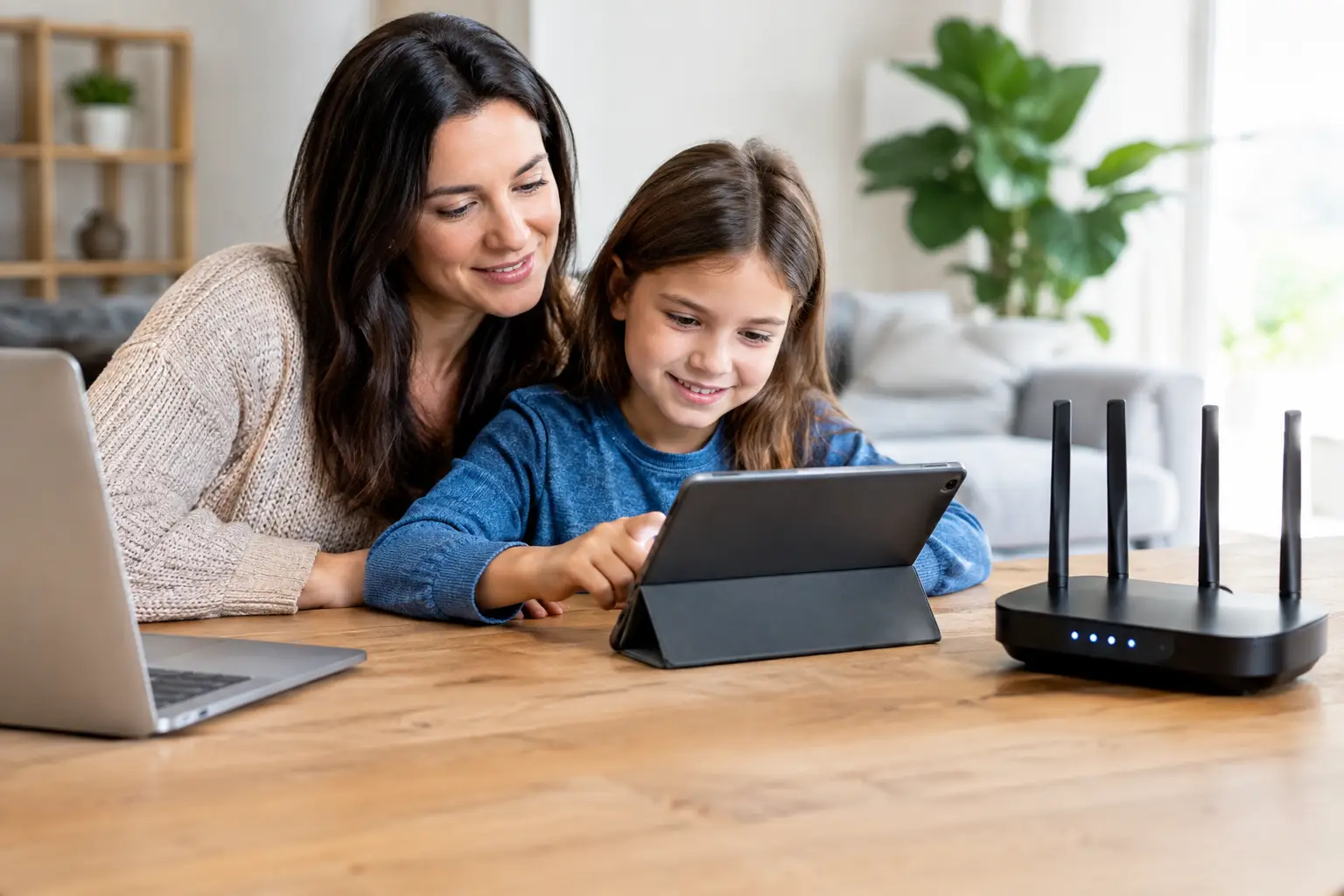
A child can move from homework videos to unrelated content in just a few taps. Meanwhile, a teenager may have a game console, phone, laptop, and streaming account all connected at once. Setting rules on only one device leaves plenty of gaps.
Learning how to set parental controls is less about watching every click and more about creating safer boundaries that match your child’s age, your household routines, and the devices your family actually uses. The best approach combines home Wi-Fi settings, device controls, app restrictions, and clear conversations. Each layer catches something the others may miss.
Start with the rules before the settings
Parental controls work best when they support a plan your family already understands. Before opening your router app or changing a phone setting, decide what you want the controls to do.
For younger children, that may mean blocking mature content, preventing app downloads without approval, and setting a firm bedtime for screens. For older kids, the priority may be limiting late-night gaming, reducing social media distractions during schoolwork, or making sure they cannot make purchases without permission.
Keep the rules specific. “No screens after dinner” sounds simple, but it can create conflict if homework, family movie night, and calls with relatives are all treated the same. A better rule could be: schoolwork is allowed until 8:30 p.m., entertainment apps turn off at 9:00 p.m., and phones charge outside bedrooms overnight.
Controls should be age-appropriate, not one-size-fits-all. A setting that makes sense for a seven-year-old can feel overly restrictive to a responsible high school student. Adjust access as your child shows good judgment.
How to set parental controls on your home Wi-Fi
Your home network is the most useful place to begin because it can apply rules to many connected devices at once. Most modern routers and internet provider apps include some form of parental control, such as device profiles, scheduled internet pauses, website filtering, and activity reports.
First, sign in to your router’s mobile app or web dashboard. The login information is often printed on the router or was provided during installation. If you have changed the password and cannot remember it, avoid resetting the router until you have checked your account details or contacted support. A reset can erase your Wi-Fi name, password, and other settings.
Create a separate profile for each child or, at minimum, for each group with similar rules. Give the profile a clear name, then assign the child’s phone, tablet, laptop, console, and smart TV to it. This step matters. If a device is not assigned to the profile, the schedule and filters will not apply to it.
Look for options such as content filtering, safe browsing, bedtime schedules, and internet pause. Website filters can block categories like adult content, gambling, violence, or malware. Scheduling tools can disconnect selected devices during class time, meals, or overnight hours. An internet pause is useful when it is time to get out the door, but it should not be your only strategy for everyday routines.
Network-level controls have limits. They usually work only while the device is using your home Wi-Fi. A phone can bypass them by switching to cellular data, connecting to a friend’s network, or using a virtual private network. That is why device controls are the next essential layer.
Add controls to phones, tablets, and computers
Every major device platform offers family settings, but the labels vary. On Apple devices, use Screen Time. On Android devices, use Google Family Link. Windows includes Microsoft Family Safety, while Chromebooks can be managed through a child’s Google account. These tools let parents manage app downloads, set daily limits, approve purchases, and view basic usage information.
Set up the child’s own account rather than sharing an adult profile. A separate account makes restrictions more reliable and helps prevent your preferences, saved payment methods, and private messages from appearing on their device.
Start with purchase approval. Requiring permission for paid apps, in-app purchases, and subscriptions protects your budget and reduces accidental charges. Then set content ratings for apps, movies, TV shows, books, and games. Ratings are not perfect, but they provide a practical first filter.
Screen-time limits deserve a little flexibility. A daily cap can help with endless scrolling or gaming, but a strict two-hour total may not fit a day that includes online homework, video calls, music practice, and entertainment. If your tools allow it, limit entertainment categories separately from school or communication apps.
Also protect the settings themselves. Use a parent passcode that is different from the device unlock code. Do not share it casually, and avoid using an easy guess such as a birthday or house number.
Set rules inside streaming, gaming, and social apps
Home Wi-Fi and phone controls cannot always manage what happens inside individual services. Streaming platforms, game consoles, online games, and social media apps often have their own safety settings. Take time to review the accounts your child uses most.
For streaming services, create a child profile and select an appropriate maturity rating. Turn off unrestricted profile switching if the service allows it, or protect adult profiles with a PIN. Check autoplay settings too. Autoplay can turn one approved show into hours of unplanned viewing.
For consoles and games, review multiplayer permissions, voice chat, friend requests, spending limits, and communication settings. Online games can be a positive social outlet, especially for kids who play with classmates or relatives. The trade-off is that public chat and open friend requests can expose them to strangers, inappropriate language, or pressure to spend money.
Social apps require more than a time limit. Review whether accounts are private, who can send messages, who can comment, and whether location sharing is active. Explain that screenshots, posts, and messages can travel beyond the intended audience, even when an account is set to private.
Make sure filters are doing their job
After setting controls, test them. Try opening a blocked category from the child’s device, confirm that the bedtime schedule starts when expected, and check whether the correct apps remain available for homework. It is much easier to find a missed setting on a Saturday afternoon than during a school-night disagreement.
Review the controls every few months, especially after a new phone, tablet, console, router, or streaming subscription enters the home. Devices may reconnect under a slightly different name after an update, and new apps can create fresh access points.
If your home has reliable high-speed Wi-Fi, it is common to have dozens of connected devices. Label devices clearly in your router app as you add them. “Sam’s iPad” is much more useful than “Tablet-4F2A.” This small habit makes it easier to spot unfamiliar devices and apply the right family profile.
Talk about the reason behind the rules
Technology settings can reduce risk, but they cannot teach judgment on their own. Kids need to know why certain content, conversations, and purchases are restricted. A calm explanation usually works better than presenting controls as surveillance or punishment.
Invite children to tell you when something online feels strange, upsetting, or confusing. Make it clear they will not automatically lose their device for asking for help. If reporting a problem always leads to punishment, they may hide the next problem instead.
For teens, consider building more independence into the arrangement. You might agree on screen-free times and review usage together rather than monitoring every site. Trust grows when expectations are clear and consequences are consistent.
Parental controls are most effective when they quietly support family life instead of becoming the center of it. Set the boundaries, check them occasionally, and leave room for the conversations that help children make safer choices wherever they connect.