

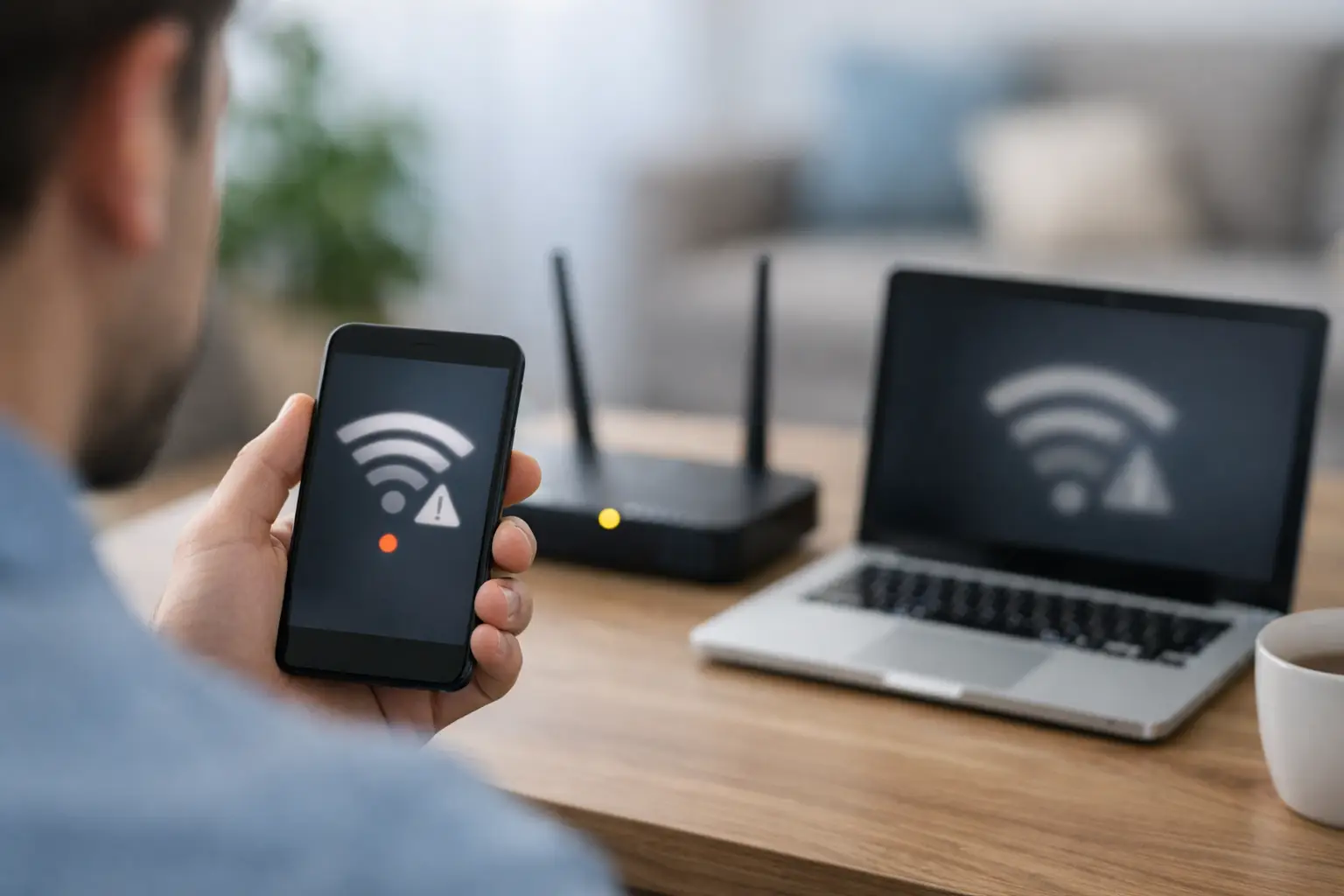
You are halfway through a work call, your show starts buffering, or your game suddenly lags out – and the same question comes up again: why does wifi keep disconnecting? If that sounds familiar, the problem usually is not random. Most WiFi dropouts come from a handful of issues, and once you narrow them down, the fix is often simpler than it feels in the moment.
For families, remote workers, students, and small businesses, unreliable WiFi is more than annoying. It interrupts meetings, slows schoolwork, affects smart home devices, and turns basic streaming into a hassle. The good news is that WiFi disconnects tend to leave clues. You just need to know what to look for.
Why does WiFi keep disconnecting in the first place?
WiFi is a radio signal, not a direct wired line. That means it is affected by distance, walls, interference from other electronics, the number of connected devices, and the quality of the equipment in your home. In some cases, the internet service coming into the home is stable, but the wireless signal inside the home is not. In others, the issue starts before the signal even reaches your router.
That distinction matters. If only phones, tablets, and laptops lose connection while a device plugged in with Ethernet stays online, the issue is probably with your WiFi environment. If everything goes down at once, including wired devices, the problem could be your modem, your router, a damaged cable, a service outage, or signal quality to the home.
The most common reasons your WiFi keeps dropping
One of the biggest causes is simple router placement. If your router is tucked behind a TV, placed in the basement, or hidden inside a cabinet, your signal has to fight through walls, furniture, and interference before it reaches the rooms where you actually use it. A strong plan does not help much if the router is in the worst possible spot.
Interference is another common issue. Microwaves, cordless phones, baby monitors, Bluetooth devices, and neighboring WiFi networks can all crowd the same wireless channels. This is especially common in townhomes, apartments, and denser neighborhoods, but it can happen anywhere. If your connection cuts in and out at certain times of day, local network congestion may be part of the problem.
Older equipment can also be the culprit. Routers do not last forever, and an aging modem-router combo may struggle to handle modern households with multiple TVs, gaming consoles, smart speakers, cameras, and work devices online at the same time. What worked fine a few years ago may now be undersized for how your home actually uses internet.
Sometimes the issue is device-specific. If only one laptop keeps disconnecting, while everything else works normally, the problem may be that device’s WiFi adapter, software, power-saving settings, or outdated drivers. It is frustrating, but it is also a useful clue because it points away from the internet service itself.
Start by checking whether it is WiFi or internet service
Before changing settings, test the type of problem you have. Try using more than one device. If every device drops at the same time, check whether the modem lights change when the connection fails. If a desktop or streaming box connected by Ethernet stays online while wireless devices disconnect, your internet service is probably fine and your WiFi network needs attention.
This is where many people waste time. They reboot everything, assume the provider is at fault, and still end up with the same issue because the router is sitting in a dead zone or overloaded by too many devices. A quick comparison between wired and wireless can save a lot of guesswork.
Quick fixes that solve a lot of WiFi problems
Restarting your modem and router is still worth trying, but do it properly. Unplug both, wait about 30 seconds, plug the modem back in first, let it fully reconnect, and then power up the router. This clears temporary errors and can restore a stable connection if the equipment has been running into glitches.
Next, move the router. Put it in a central, open area and keep it off the floor. Avoid placing it near metal objects, large appliances, concrete walls, or inside entertainment cabinets. In many homes, a small move makes a big difference.
If your router supports both 2.4 GHz and 5 GHz bands, test both. The 2.4 GHz band usually reaches farther but is often more crowded. The 5 GHz band is faster at shorter range but weaker through walls. If your bedroom office is far from the router, 2.4 GHz may be steadier. If you are closer and want better speed for streaming or gaming, 5 GHz may perform better.
You should also check how many devices are connected. A busy household can easily have 20 or more devices online between phones, tablets, TVs, consoles, printers, doorbells, and cameras. If your router is older, that load can cause random disconnects, especially during peak use in the evening.
Why does WiFi keep disconnecting on one device only?
When one device keeps dropping while others stay connected, focus on that device first. Forget the network and reconnect to it. Install system updates. Check for driver or firmware updates if it is a laptop, desktop, or smart device. Disable aggressive battery-saving modes that may turn off the WiFi adapter to save power.
Phones and laptops can also hang onto a weak signal longer than they should. That creates the feeling of a connection, but performance is poor until the device finally drops and reconnects. If this happens in the same room every time, the real issue may still be coverage, not the device itself.
Coverage problems are more common in larger and rural homes
Bigger homes, older construction, and multi-floor layouts can all weaken WiFi. Brick, plaster, metal, and concrete are especially tough on wireless signals. In rural properties, detached garages, workshops, and backyard offices often sit beyond the comfortable range of a standard router.
In these situations, the answer is not always a faster plan. Sometimes you need better in-home coverage instead. A mesh WiFi system or additional access point can spread signal more evenly across the property. That is a more practical fix than paying for higher speeds that cannot reach the rooms where you need them.
When your equipment may be the real problem
If your router is several years old, disconnects may happen because the hardware is falling behind. Newer routers manage multiple devices better, support improved WiFi standards, and handle band steering more effectively. They also tend to recover from interference and heavy usage more gracefully.
Modem issues can look similar. If the modem regularly loses sync, overheats, or shows inconsistent status lights, the problem may be upstream from WiFi. Loose coax connections, damaged lines, and signal fluctuations can all cause internet dropouts that look like wireless problems from the user side.
That is why local support matters. A dependable provider can help determine whether the issue is inside the home, with your equipment, or with the signal coming into the property. For customers in Southwestern Ontario, that kind of practical troubleshooting is often more valuable than generic advice because housing layouts, rural coverage needs, and infrastructure vary from one community to the next.
When to stop troubleshooting and upgrade
There is a point where repeated resets and settings changes stop being worth it. If disconnects happen daily, your router is outdated, your home has dead zones, or your current service no longer fits how many people and devices are online, upgrading the setup may be the better move.
That does not always mean buying the most expensive plan available. It means matching your internet service and WiFi hardware to your real usage. A home with remote work, 4K streaming, gaming, and smart devices needs more than a basic setup. The right combination of speed, modern equipment, and proper placement is what creates reliable performance.
If you are asking why does wifi keep disconnecting over and over, treat it as a signal that something in your setup needs attention. Sometimes the fix is as simple as moving the router. Sometimes it is replacing older hardware or improving coverage across the home. Either way, a stable connection should not feel like luck – it should be something you can count on every day.