

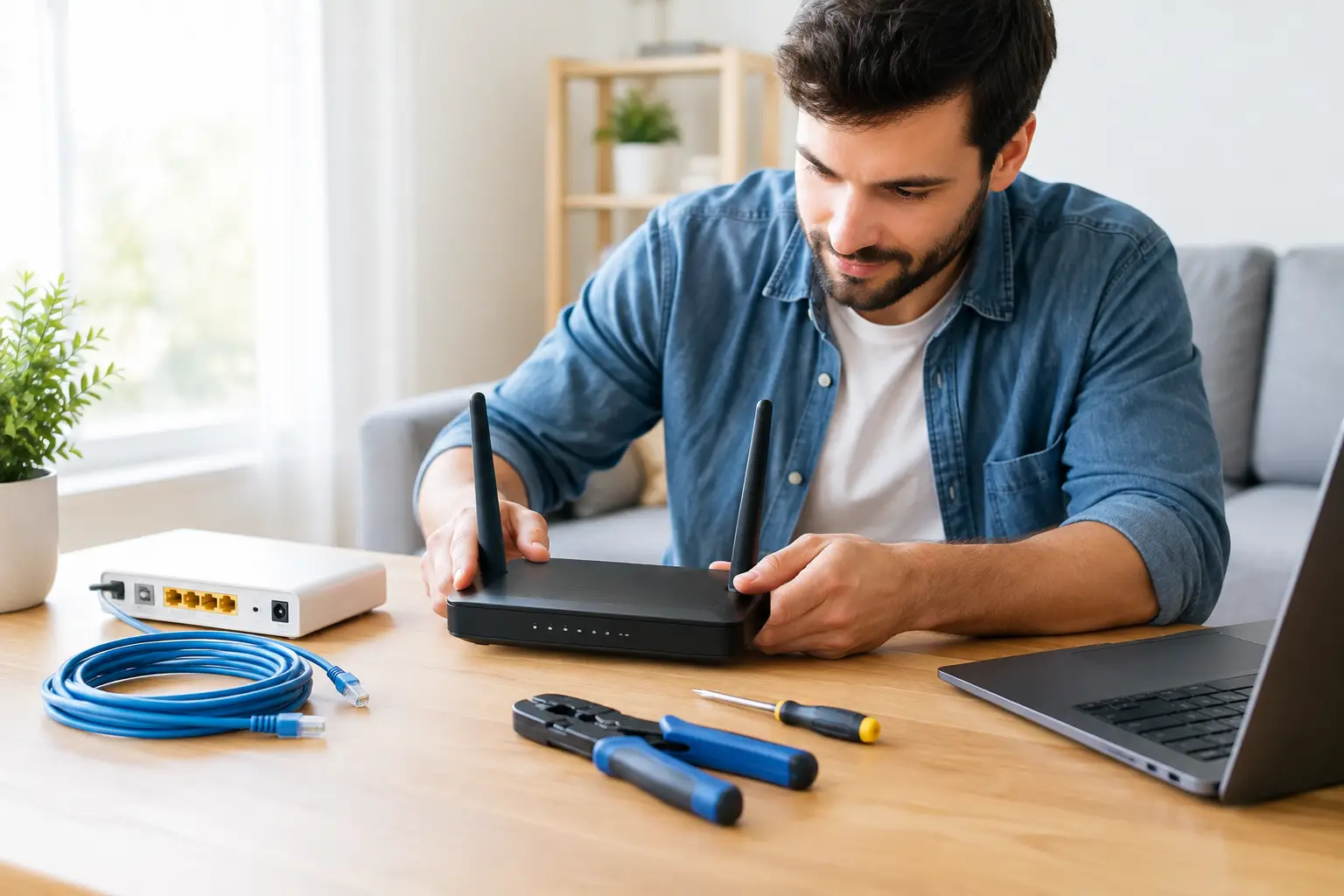
A missed installation window can mean another day of mobile hotspots, frozen video calls, or a house full of people asking when the Wi-Fi will work. Knowing how to prepare internet installation before the technician arrives helps your appointment go faster and gives your household the best possible connection from day one.
For homes across Southwestern Ontario, preparation is usually simple. A little planning around access, equipment placement, and your everyday internet needs can make a major difference in Wi-Fi coverage, speed, and convenience.
How to Prepare Internet Installation Before Your Appointment
Start by confirming the appointment date, arrival window, and contact number on the order. Plan for an adult to be home for the full window, especially if the technician needs access to a utility room, basement, outside wall, apartment telecom closet, or locked gate.
If you rent your home, check whether your landlord or property manager needs to approve new wiring, drilling, or equipment placement. Most installations are straightforward, but getting permission in advance avoids delays when a cable route needs to be changed.
It also helps to let the provider know about anything that may affect access. That includes a long driveway, a rural property with a locked entrance, a dog in the yard, a gated community, construction near the home, or a difficult-to-find rural address. Clear details help the technician arrive prepared.
Clear a path to existing service lines
The technician may need to inspect the point where service enters your home. This is often near a utility panel, basement wall, garage, crawlspace, or exterior cable box. Move storage bins, furniture, and other obstacles away from these areas before the appointment.
Outside, trim back branches or move items that block access to the side of the home. You do not need to perform any electrical or cable work yourself. Simply make the relevant areas safe and easy to reach.
For apartment and condo residents, ask building management where telecom equipment is located and whether they need to provide access. This small step can prevent a longer wait while someone tracks down a key.
Choose the Best Location for Your Modem and Router
Where your modem and router sit matters as much as the internet plan you choose. Wi-Fi signal has to travel through walls, floors, appliances, and furniture. A router hidden in a cabinet at one end of the house may still provide service, but it is unlikely to deliver the same coverage as one placed in a more central, open location.
Choose a spot with a working power outlet, a stable surface, and reasonable access to the incoming service line. For most homes, a central main-floor location works well. If you work from a home office, stream in the living room, and use smart devices throughout the house, aim for a location that serves all three areas rather than only one room.
Avoid placing equipment inside metal cabinets, behind large televisions, beside microwaves, or on the floor. Basements can be practical when that is where the line enters, but a basement corner may limit Wi-Fi coverage upstairs. In that case, ask about options such as a longer cable run, a mesh Wi-Fi system, or a wired connection for high-priority devices.
For larger homes, older homes with thick plaster walls, or rural properties with multiple buildings, one router may not cover every space equally. It depends on the layout, building materials, and where your family actually uses the internet. Discuss those details before or during installation so you can choose a setup that fits your home.
Keep power and equipment ready
Your modem, router, and any Wi-Fi extenders need power. Make sure the intended installation area has an open outlet or a quality surge protector with available space. Avoid overloaded power bars and extension cords running across walkways.
If you have an existing router, mesh system, or security hub that you want to keep using, have it ready and share that information with the technician. Some equipment works well with a new connection, while other setups may need adjustment. Knowing your plan ahead of time saves troubleshooting later.
Match Your Internet Setup to Real Household Use
Internet installation is a good time to think beyond a single speed test. Consider how many people will be connected at the busiest time of day and what they do online. A household that checks email and streams one show has different needs than a family with remote workers, online learners, gamers, security cameras, and multiple 4K TVs.
Write down the devices that need the most dependable connection. Desktop computers, gaming consoles, workstations, smart TVs, and streaming boxes often perform best with a direct Ethernet connection when possible. Wired connections reduce interference and can provide more consistent performance for video calls, competitive gaming, and large file transfers.
Wi-Fi is ideal for phones, tablets, laptops, and smart home devices, but it is not magic. Distance and walls affect it. If your office is at the far end of the house, mention it during installation. The same goes for a detached garage, workshop, backyard office, or rental suite where you expect to use the connection.
Unlimited data can give busy households more breathing room, particularly when several people stream, game, work, and study at the same time. The right speed still depends on your usage and coverage at your address, so ask clear questions when selecting a plan.
Prepare Your Devices and Account Details
Before the technician arrives, locate the login information for any devices or services you want to connect. This may include smart TVs, streaming sticks, printers, gaming consoles, home security devices, and work laptops. You will not need to set up every device during the appointment, but having passwords available makes the first evening with your new connection much easier.
If you are switching providers, do not cancel your old internet service too early unless you have confirmed the timing. In some cases, keeping the old service active until the new connection is tested can reduce downtime. If you are transferring a home phone number or adding TV, mobile, or security services, ask what information is needed before installation day.
Have your preferred Wi-Fi network name and password in mind. A name that is easy for your household to recognize is practical, while a strong password protects your network. Avoid using personal details such as your full name, address, or phone number in either one.
Test the connection before the technician leaves
Once the service is active, connect a phone or laptop and test it in the rooms you use most. Try loading a webpage, streaming a short video, and joining a video call if you work remotely. If a device will use Ethernet, confirm that connection as well.
Ask the technician where the equipment is installed, how to restart it, and what the status lights mean. You should also know who to contact if you need help after the appointment. Local support makes a difference when a practical question comes up after the truck has left.
If coverage is weak in a specific room, bring it up before the technician leaves. The answer may be as simple as changing the router location, but larger homes may benefit from additional equipment. It is easier to make a plan while the layout and connection points are right in front of you.
A Better Start for Your Connected Home
A successful installation is not only about getting a modem online. It is about placing your connection where it can support movie nights, homework, work calls, gaming, and the devices that keep your household running. S-Connect helps Southwestern Ontario homes get set up with clear guidance, dependable options, and service built around how local families actually connect.
Set aside a little time before your appointment, clear the access points, and choose the room that gives your Wi-Fi the strongest chance to reach the places that matter most. That preparation can turn installation day into the start of a faster, more reliable home connection.